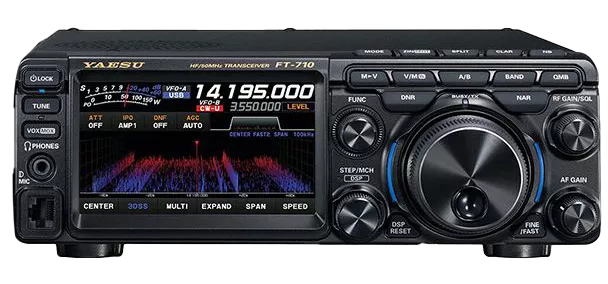
This page describes how to setup wfview with the Yaesu FT-710 via the USB port interface. Please note that Yaesu FT-710 support is beta at this time and requires installing drivers.
On the radio:
Enable the SCU-LAN10. This enables the spectrum output. You don’t need to have a SCU-LAN10 to do this, just enable the item in the radio’s menu.
On the computer:
You will need to install the driver for the SPI chip inside the FT-710. This driver is from the FTDI company for their FT4222 chipset.
Windows:
Yaesu has a download which has the driver you need.
Go to this page on Yaesu’s site.
Click “Files” and then click “FT-710 USB Driver Virtual COM Port Driver (Windows 11/10)”
There is also a PDF you can download which shows the steps, it is listed on the same page under “USB Driver Virtual COM Port Driver (Windows 11/10) Information”
Next, you need to download the “DXX” driver from here
Scroll down the page until you see “Windows (Desktop)” or “Windows (Universal)”
Linux:
The driver can be downloaded from here. Follow the directions from the “00_README.txt” file, which is available at the link. Important, do not forget to run sudo ldconfig
You will need to set permissions up so that you can access the new SPI device.
As root, create and edit the file/etc/udev/rules.d/99-ftdi.rules
Insert the following text:
SUBSYSTEM=="usb", ATTR{idVendor}=="0403", ATTR{idProduct}=="601c", MODE="0666"
Note: More advanced users might want a more secure config which owns the device to their username.
Save the file.
Reload the udev subsystem:
sudo udevadm control --reload-rules
sudo udevadm trigger
Reconnect the radio’s USB port
Verify the presence of the serial device for the radio. The device “if00” is the “CAT-1” interface, which we want to use with wfview. This is also the “00” device from the second command.
ls -l /dev/serial/by-id/
Silicon_Labs_CP2105_Dual_USB_to_UART_Bridge_Controller_00E1ABCD-if00-port0
Silicon_Labs_CP2105_Dual_USB_to_UART_Bridge_Controller_00E1ABCD-if01-port0
grep . /sys/class/tty/ttyUSB*/device/bInterfaceNumber
/sys/class/tty/ttyUSB0/device/bInterfaceNumber:00
/sys/class/tty/ttyUSB1/device/bInterfaceNumber:01
Check for the FT4222 device:
lsusb | grep FT4222
Bus 001 Device 005: ID 0403:601c Future Technology Devices International, Ltd FT4222H
wfview Setup:
With wfview, you will need only to specify the serial port. wfview can use the FT4222 driver to find the SPI port automatically.
Key points to set in wfview:
- Radio Connection: USB (we support network connections too, if you have the SCU-LAN10)
- Serial Device: Make sure to select the correct port. It will not be the same port as shown in the screenshot!
- Baud Rate: Defaults to 38400, but check on the radio’s menu
- PTT Type: CI-V (which means “CAT” for a Yaesu). This just means we send a command for PTT rather than toggling a serial port’s analog output signal.

The wfview log will show if the device was found:
2026-02-26 19:13:39.362 INF rig: FTDI libraries loaded successfully
2026-02-26 19:13:39.370 INF rig: Init FT4222 as SPI master
2026-02-26 19:13:39.378 INF rig: Init FT4222 as SPI master completed successfully!